


Microsoft Teams
Client Portal
The Microsoft Teams Client Portal is your central place for verification, ticket creation, and communication with your technicians.
Within the Microsoft Teams Client Portal, you will be able to:

Verify our
technicians

Be verified by your technicians

Create tickets & check statuses

Communicate with your techs regarding tickets
Enter The Teams Client Portal
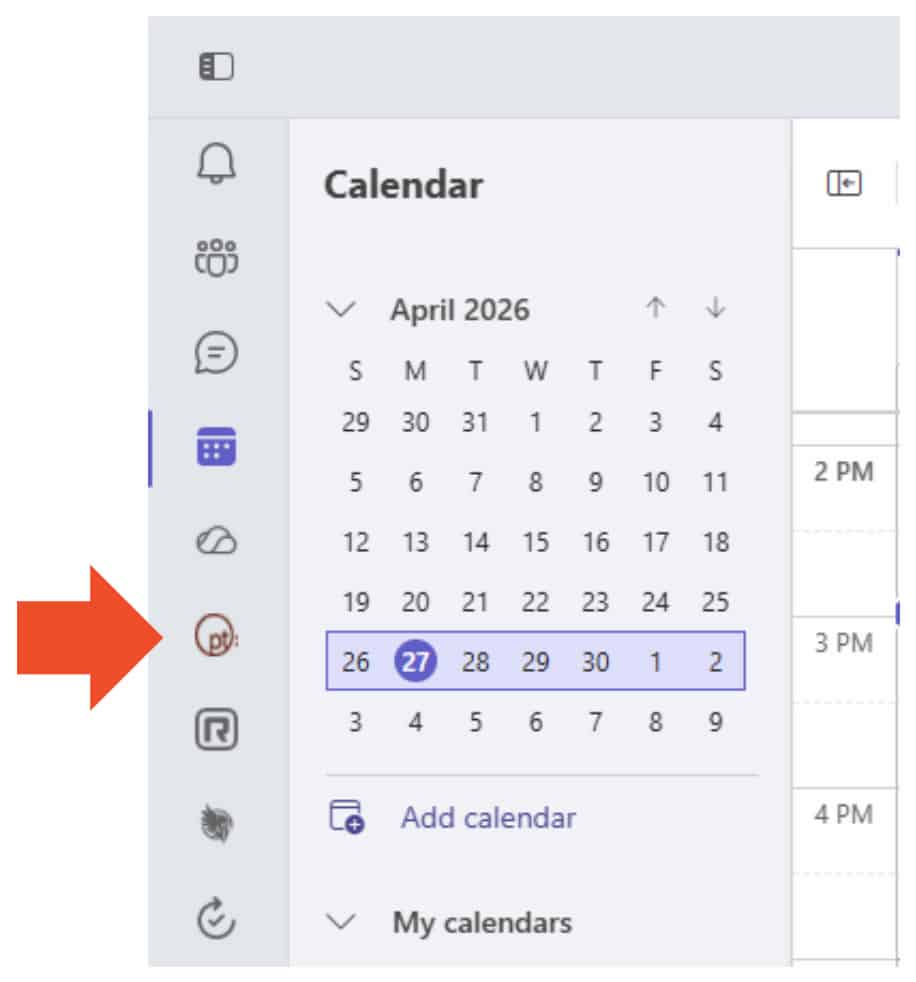
To access the Teams Client Portal, simply open Microsoft Teams and click on the prototype:IT icon within the application. This icon serves as your entry point to the portal, where you can manage all interactions with your IT support team. Once inside, you’ll have direct access to features such as technician verification, ticket creation, status tracking, and communication – all in one centralized, easy-to-use interface.
Verify Your Technicians
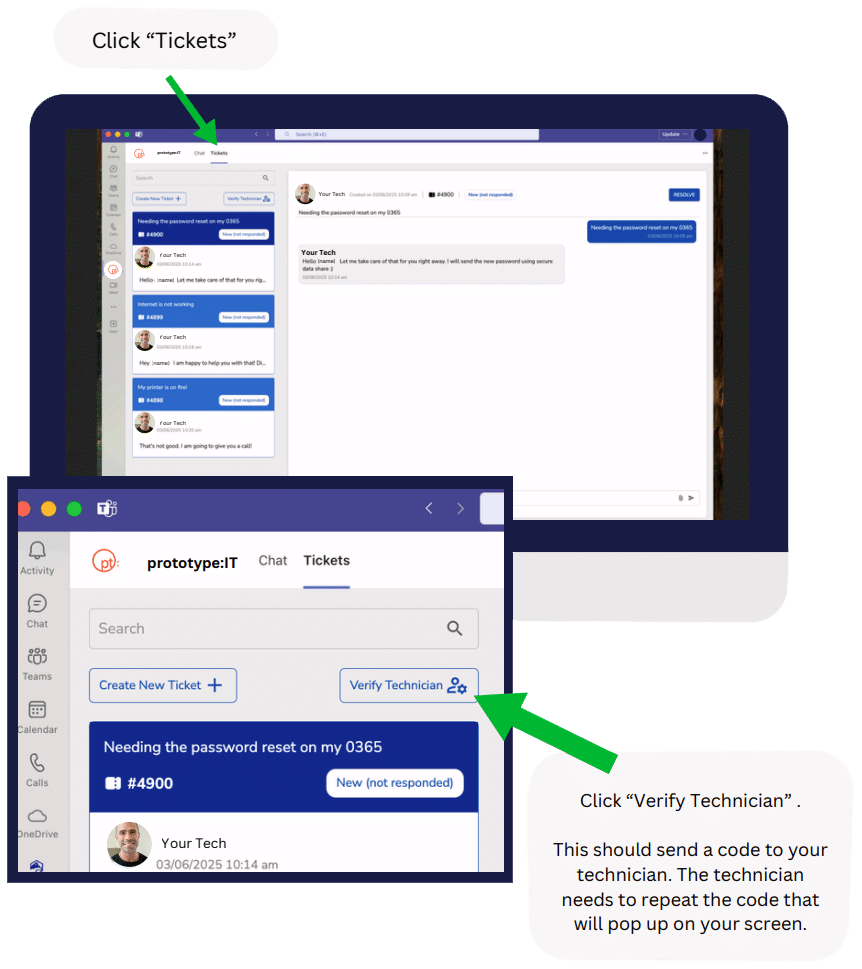
To verify your technicians, navigate to the verification section within the Microsoft Teams Client Portal and click on “Verify Technician.” This action will generate a unique code on your screen, which must be shared with the technician assisting you. The technician will then repeat the same code to confirm their identity. This simple yet secure process ensures that you are working with an authorized representative, helping maintain the integrity and safety of your support interactions.
Be Verified By Your Technicians
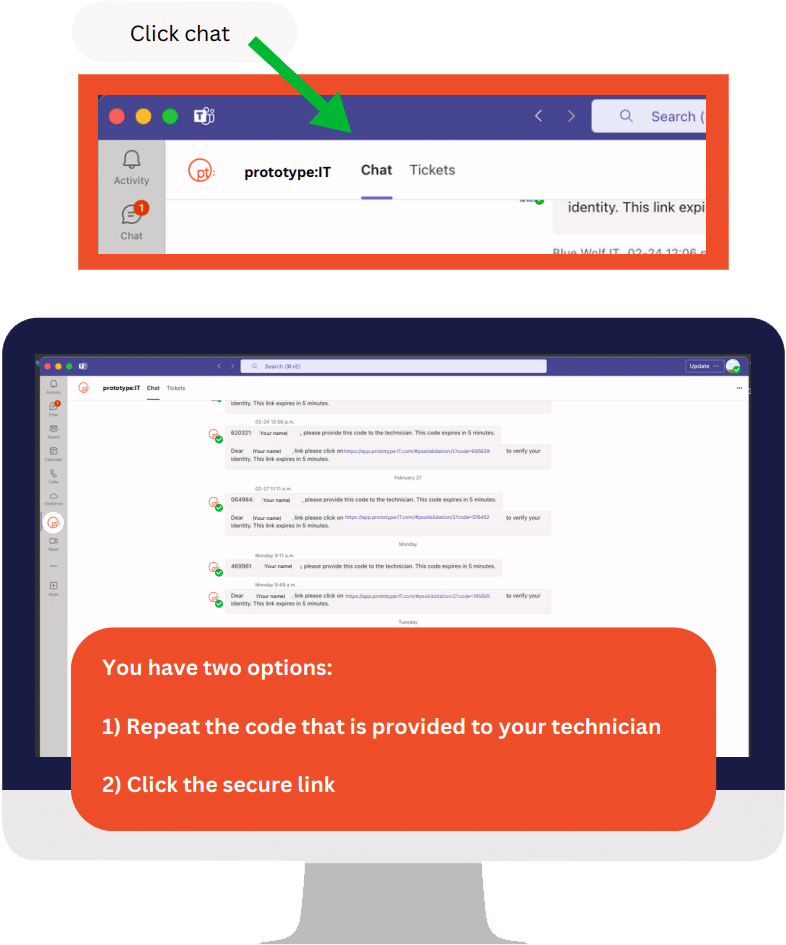
To be verified by your technician, you can use one of two secure methods available within the Microsoft Teams Client Portal. You may either repeat the unique verification code provided by the technician to confirm your identity, or click on the secure verification link sent to you. Both options are designed to ensure a safe and authenticated connection, giving your technician confidence that they are assisting the correct user while maintaining a high level of security throughout the support process.
Create A Ticket: Teams
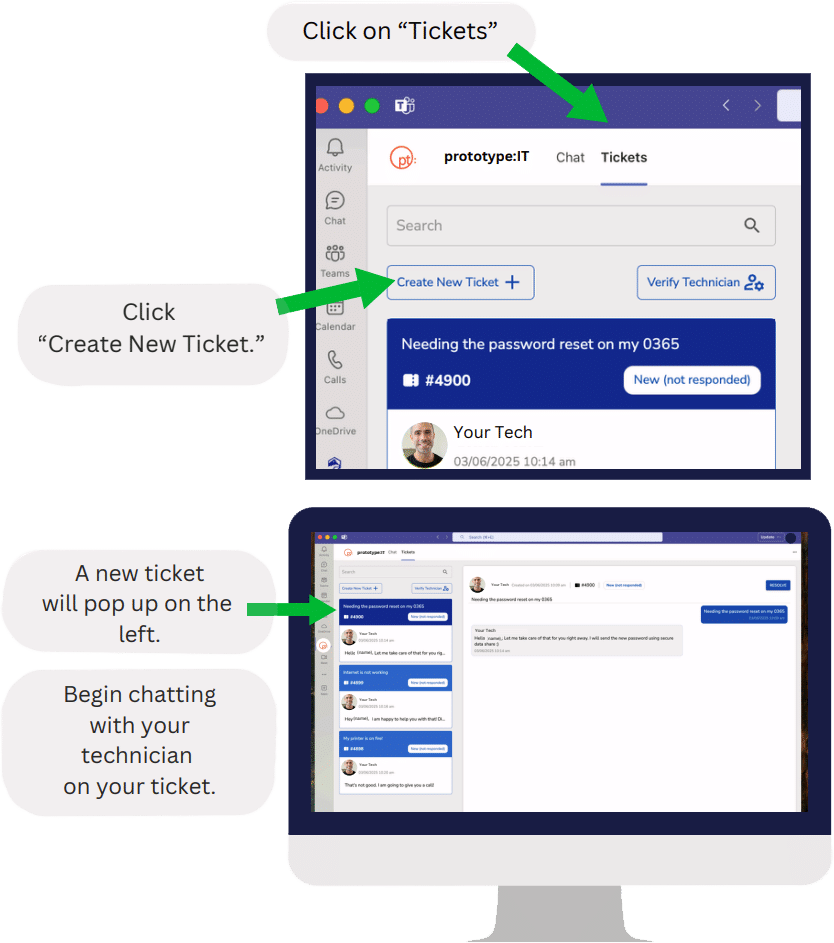
To create a ticket within Microsoft Teams, navigate to the “Tickets” section in the Client Portal and click on “Create New Ticket.” Once submitted, your request will appear in the ticket list, typically on the left-hand side of the interface. From there, you can begin communicating directly with your technician by opening the ticket and using the chat feature. This streamlined process allows you to report issues, track progress, and stay connected with your support team all in one place.
Communicate With Your Techs
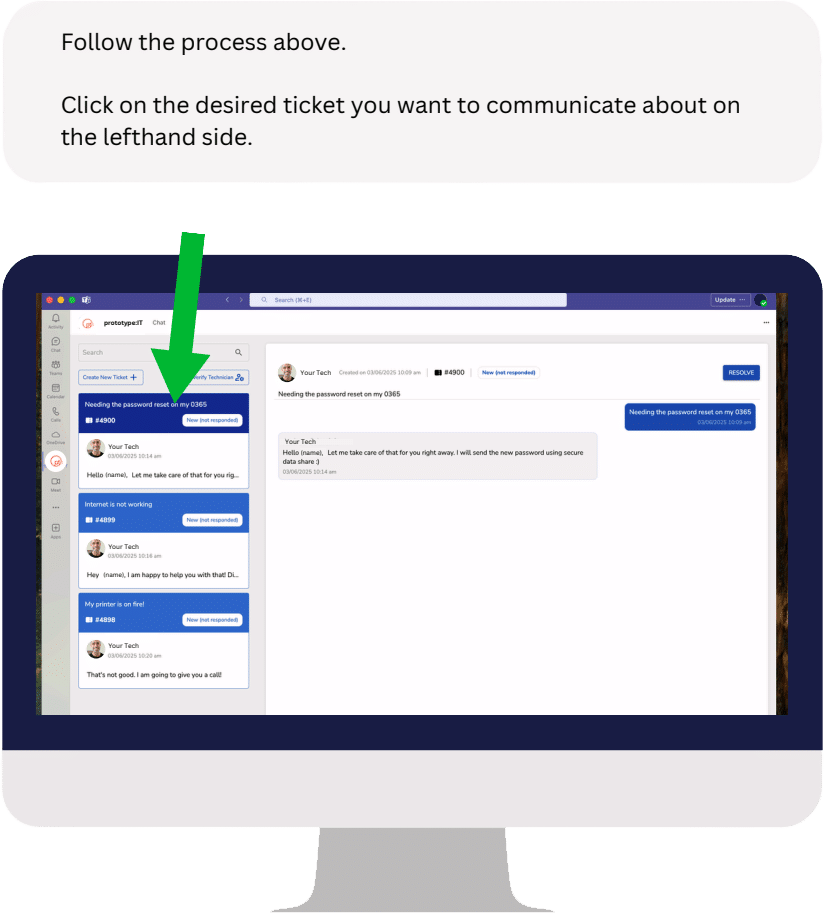
To communicate with your technicians, simply open Microsoft Teams and navigate to the Client Portal. From the ticket list on the left-hand side, select the ticket you wish to discuss. Once opened, you can use the chat feature to message your technician directly, share updates, and receive responses in real time. This ensures clear, organized communication tied to each specific request, helping resolve issues more efficiently.
