
What to Do Before Windows 10 End-of-Life
July 24, 2025



On October 14, 2025, Microsoft will officially discontinue all updates, support services, and cybersecurity patches for Windows 10 operating systems. That means any device still running Windows 10 will become more vulnerable to threats and may no longer meet certain compliance standards.
| “Many people are hesitant to move from Windows 10 to Windows 11 for several (valid) reasons, but Microsoft is no longer giving users a choice. That’s why you need to proactively plan your upgrade in a way that fully addresses your concerns.” – Thad Siwinski, CEO of Prototype IT |
Furthermore, most vendors will stop testing or supporting their products on Windows 10. That can lead to compatibility problems or reduced performance for business apps, browsers, and third-party tools. It may also lead to issues with newer hardware features in some cases.
So, your best option is to upgrade your IT infrastructure before Windows 10 EOL. Microsoft will offer a paid option for extended security updates (ESU), but this will only be available until October 2028. That means you still need a plan to move away from Windows 10.
The rest of this article will help you do that. We will explore the reasons why you may still be using Windows 10 and how to make the shift in a way that addresses your concerns. We will also discuss the benefits of Windows 11 that led Microsoft to push it as the superior choice.
Why You May Be Hesitant to Switch to Windows 11
The switch may not be an obvious choice for all organizations. Here are some of the most common reasons Windows 10 users have hesitation.
Hardware Requirements
Windows 11 requires features like TPM 2.0, Secure Boot, and newer processors. Many devices that run Windows 10 smoothly do not meet these standards. Replacing otherwise functional hardware to meet these requirements feels unnecessary to some users.
Compatibility Issues
Some older software and peripherals do not work reliably on Windows 11, especially custom-built applications. Businesses that rely on these tools hesitate to upgrade without guaranteed compatibility.
User Interface Changes
Windows 11 has a redesigned interface, including a centered taskbar, changes to the Start menu, and new settings menus. While these changes are intended to modernize the experience, they can disrupt long-standing workflows for users who are accustomed to Windows 10.
Solve 82% of Your Technical Challenges After Just One Call |
How to Upgrade Windows 10 Devices While Meeting Your Key Needs
1. Check Compatibility
Use Microsoft’s PC Health Check tool to confirm support for TPM 2.0, Secure Boot, and a compatible processor. If the tool flags issues, inspect BIOS settings to enable features like TPM or Secure Boot where possible. For unsupported hardware, create a list of required upgrades based on device age and current business use.
If your current systems run well on Windows 10 but don’t meet new requirements, compare the cost of upgrades to the operational risk of staying on unsupported hardware. Some older devices may remain functional but with lower performance under Windows 11.
2. Assess Applications
List all business-critical applications and connected hardware. Contact vendors or check documentation to confirm Windows 11 support. For tools with known issues, look into software updates or consider isolating those systems until alternatives are in place. Document what cannot be migrated.
If you rely on niche software or proprietary hardware, do not proceed until testing confirms compatibility. Keep a rollback plan in place just in case certain systems become unstable after the upgrade.
| Will Windows 10 EOL affect Android devices?
Android runs on the Linux kernel, while Windows 10 is designed for PCs. The two systems operate independently. So, no, Windows 10 end-of-life will not affect Android devices. |
3. Back Up User Data
Use Microsoft’s User State Migration Tool (USMT) or a backup platform to capture user profiles, documents, and system settings. Instruct employees to move files to OneDrive or an external drive before starting the upgrade. Test recovery steps to confirm data can be restored if needed.
4. Prepare Users for Changes
Offer quick-start guides that explain the new Start menu, taskbar layout, and search behavior. Provide walkthroughs or short videos before the rollout. If teams use custom workflows, assign IT staff to help reconfigure desktops or settings during the transition.
Windows 11 introduces several design and layout changes. Users who are comfortable with Windows 10 may need support adjusting to the new interface. Involve your IT helpdesk early to log feedback and reduce frustration.
5. Upgrade Devices
For supported devices, use Windows Update or the Installation Assistant. For bulk deployment, use Windows Deployment Services or Microsoft Intune. If your devices do not meet requirements but you still want to proceed, use installation media with caution and understand the risks of unsupported configurations.
| Do I need to update to the latest version of Windows 10 before switching to 11?
While you don’t need to update your systems to the latest version of Windows 10 first, it is strongly recommended. If your current version of Windows 10 is significantly outdated, the upgrade tool might not work correctly. Also, some updates include drivers that help make your transition to Windows 11 smoother. |
6. Confirm Functionality
After the upgrade, test all devices to confirm network access, software availability, and hardware recognition. Pay close attention to printers, scanners, and line-of-business apps. If you see repeated issues, pause the rollout and adjust the deployment plan.
7. Retire Legacy Systems
Decommission devices that cannot meet Windows 11 requirements. Remove them from your asset inventory, securely erase data, and recycle or repurpose where appropriate. Avoid running unsupported systems past Microsoft’s October 2025 deadline to reduce security risks unless you are part of the security updates (ESU) program.
Be aware that keeping outdated hardware in production increases long-term support costs and exposes you to more maintenance issues. Some devices may remain useful for isolated roles but should not handle critical workloads.
| Get More Insights on How to Keep Your Systems Up-to-Date |
What Are The Benefits of Switching to Windows 11?
Improved Performance
Windows 11 includes efficiency improvements like smaller update packages, faster resume times from sleep, and lower background resource usage. These updates make the system feel quicker and extend battery life for portable devices.
Enhanced Multitasking Tools
Multitasking can reduce productivity by as much as 40%, yet 92% of employees do it. Multitasking isn’t going away, but the right tools can reduce the risk of it causing productivity loss.
Windows 11 introduces Snap Layouts and Snap Groups that let users quickly organize apps into structured grids. Windows remembers these groups and restores them after restarts. This reduces wasted time repositioning apps and supports focused work.
Stronger Built-in Security
By requiring TPM 2.0, UEFI Secure Boot, VBS, and hardware-based stack protection, Windows 11 provides better defence against firmware and kernel-level attacks. These features help keep your data safer from rising cyber threats.
| Improve Your Built-In Security Tools With Expert Advice | ||
| Dallas | Fort Worth | Lewisville |
Integrated AI
Although Microsoft Copilot does work on Windows 10, it’s in a more limited form. You’ll get the core AI chat and screen‑reading tools, but you won’t access the full Copilot+ experience. Additionally, Windows 11 includes several integrated AI features beyond Microsoft Copilot. These include accessibility features, camera effects, system UI, and creative apps.
Direct Microsoft 365 Access
The Start menu surfaces recent documents from your Microsoft 365 account. This eliminates the need to open apps just to locate files. Plus, Microsoft Teams sits right on the taskbar and supports live captions in multiple languages. This allows fast communication during meetings, even in noisy environments, without launching extra apps.
Better Tools For Remote & Hybrid Work
Quick toggles for VPN, Bluetooth, and display settings make switching between locations easier. The updated Clock app includes focus timers, and cloud clipboard sync works across devices. These tools help remote workers stay structured and efficient.
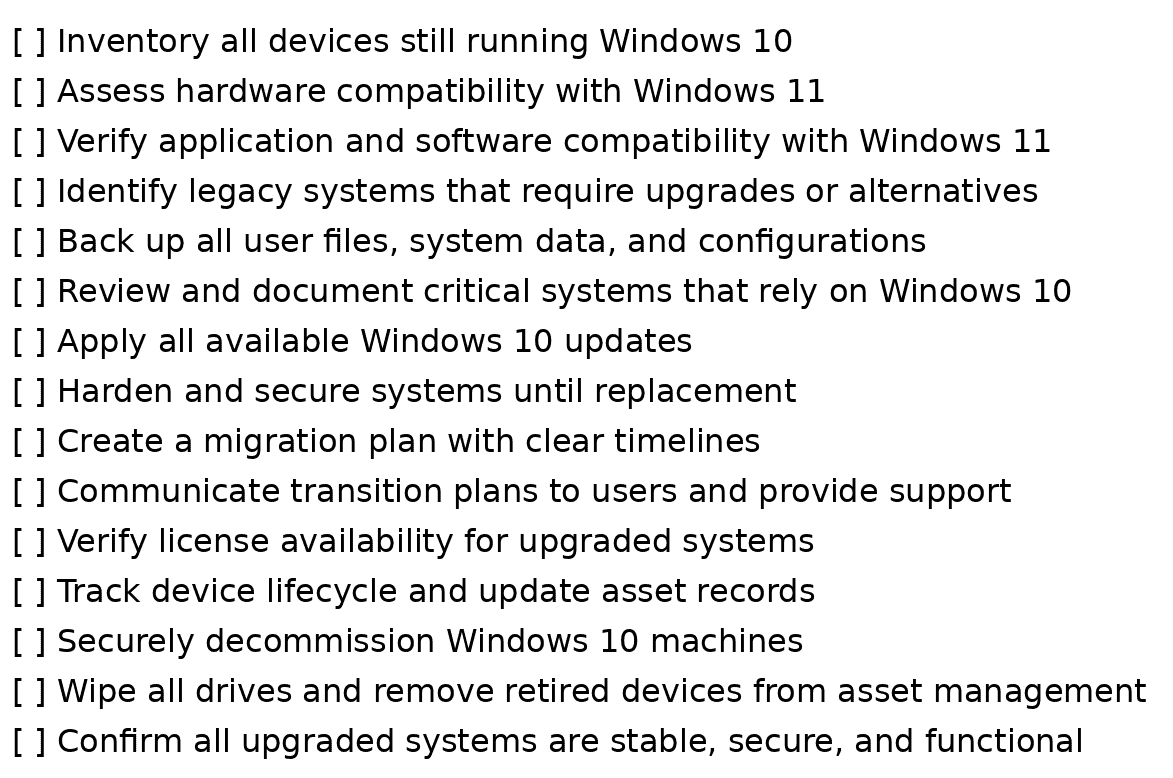
Windows 10 End-of-Life Checklist
Get Windows 11 Ready With Prototype IT
As your organization plans for Windows 10 end of life, it’s also a smart time to re-evaluate how your business shows up digitally. If you’re updating systems and refreshing technology, consider whether your brand identity still reflects where your company is headed.
Prototype IT now offers a signature logo design service to help businesses update their brand image during IT transitions. This service includes multiple design concepts, direct collaboration with your team, and practical previews across email headers, web pages, and business documents. It gives you a clear, modern logo that supports how your business presents itself during system upgrades.
Reach out to us today to learn more.
Free Network Assessment:
Get In Touch
- ▶ 401 E. Corporate Dr STE 220
Lewisville, TX 75057 - ▶ 600 W. 6th St Suite 485
Fort Worth, TX 76102 - ▶ 13155 Noel Rd Suite 905
Dallas, TX 75240 - Phone: (214) 270-0850
- Web: https://www.prototypeit.net
